Mirasim Documentation
Computer Use
Let the agent in your session open pages, click, type and check the result, in a browser or a desktop app.
What it is for
Computer Use is a tool the agent in your session can call: it looks at a page or a window, clicks, types, scrolls and takes screenshots to check what happened. You describe the task in the session as usual; the agent decides when to reach for it. It runs on the model and account the session already uses.
- Check the page it just built: open it, click through it, and fix what does not work.
- Look something up or fill in a form on a site you are signed in to.
- Operate a desktop app that has no API.
Turn it on
- Open its settings
Avatar menu at the bottom left › Plugins › Computer Use.
- Enable Computer Use
On a new install everything here is off. While the main switch is off, agents do not get the tool at all.
- Turn on the connections you want
Each browser connection and each kind of app has its own switch, below.
- Ask for the task in your session
For example: “Open the page you just built and check that the sign-up form works.”
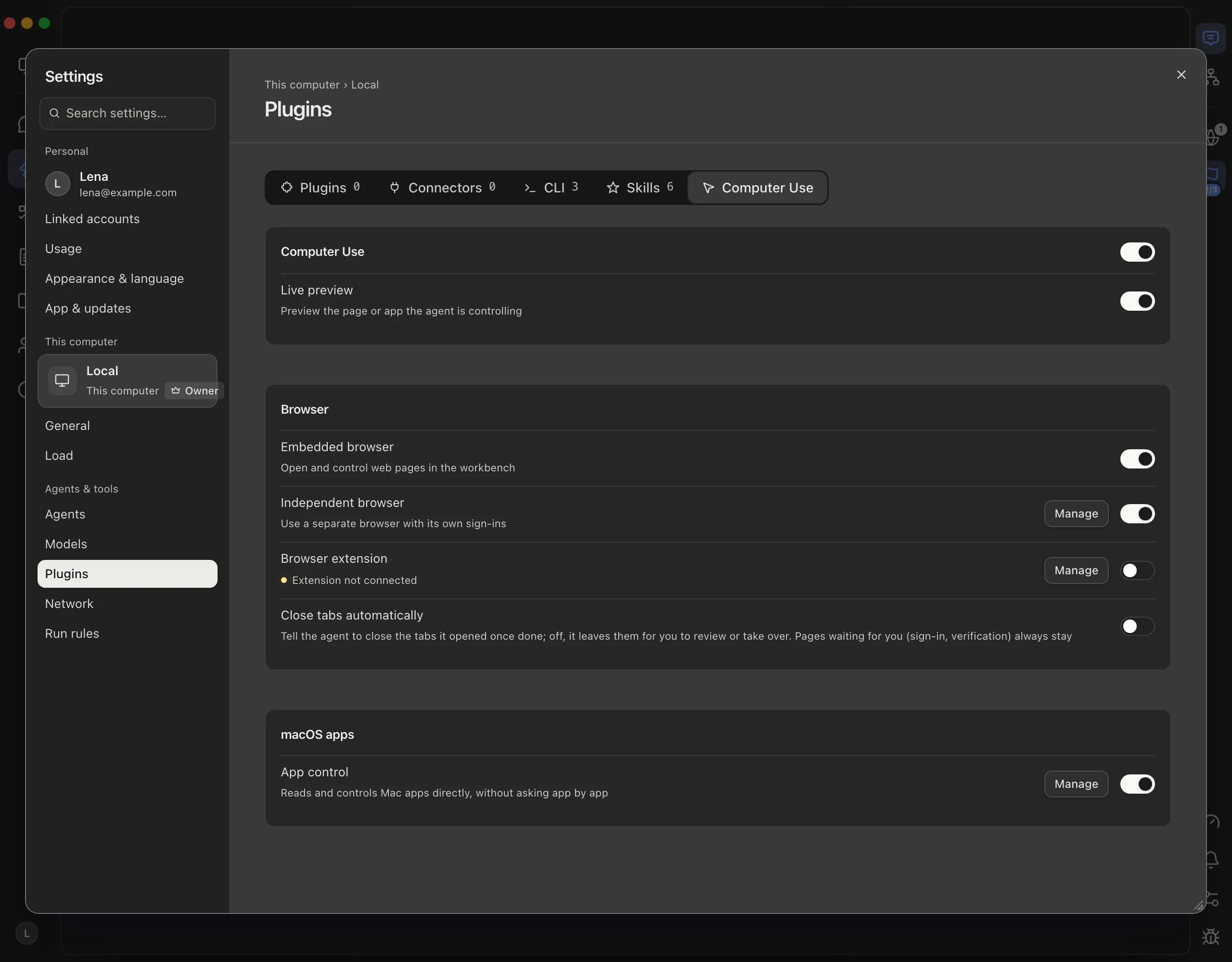
Three ways to reach a browser
- Embedded browser
- Pages opened inside the workbench, such as a preview of the page your session is running. Nothing to install. Some spaces do not offer it and say Unavailable in this space.
- Independent browser
- A separate Chrome or Chromium with its own data folder and its own sign-ins. Manage sets the browser and the folder, and Copy your logins copies the cookies, saved passwords and bookmarks of a Chrome profile you pick. The copy is a one-time snapshot: press Refresh logins to bring in later sign-ins. The Chrome you are using is left alone.
- Browser extension
- The agent works inside the browser you are already using, with its current sign-ins. Install the Mirasim browser extension from the Chrome Web Store once and it connects by itself; turning the switch on first asks you to confirm. Tabs the agent opens go into a “mirasim” tab group, and by default it sees only those and the tabs you hand over (below). It asks before closing any tab of yours, and the browser shows that it is being debugged while it works.
All three can be on at once. Each keeps its own sign-ins, and the agent picks one for each call.
Close tabs automatically: on, the agent is told to close the tabs it opened once it is done; off (the default), they stay open for you to review or take over. Pages waiting for you, such as a sign-in or a verification, always stay.
| You want the agent to | Use |
|---|---|
| Do something on a site you are signed in to, or on a page you already have open | Browser extension |
| Check a page it just built, or browse sites that need no account of yours | Independent browser, or the embedded browser to watch it beside the session |
| Stay out of the browser you are working in | Independent browser |
When several are on and you do not say which, the agent uses the extension if it is connected, then the embedded browser, then the independent one. Name one in the session (“use my own browser”) to settle it. A connection you name is never swapped for another: if the extension is not connected, the agent says so instead of quietly working in a browser without your sign-ins.
Working in your own browser
With the extension, you decide which tabs the agent may use. The rules live in the extension itself, so they hold whichever app the agent works through.
- Hand a tab over
On the tab, click the Mirasim icon in the toolbar (pin it from the puzzle-piece menu first). The tab joins the “mirasim” tab group of its window and the agent can use it. If the agent says it cannot see a page you have open, this is the fix.
- Take it back
Click the icon on a tab already handed over to open the panel, then press Take back; or drag the tab out of the group. Either way the agent lets go of it at once. A click on the icon never takes a tab away by itself, so a task in progress is not cut off by accident.
- Pause
Pause the agent in the panel stops everything at once: the agent lets go of every tab and each browser command it sends is refused until you press Resume. The agent is told you paused it and waits.
- Only the Mirasim group
- The default. The tabs you hand over, the tabs the agent opens and the windows they open. Your other tabs are not listed to it at all.
- Ask me
- The agent sees the title and address of every tab, and a small window asks you before it uses one outside the group. Allowing covers that tab until it closes.
- All tabs
- The agent sees and may use every tab, as versions before 0.1.3 did.
Site rules, also in the panel: list sites the agent may never use, one per line (a name covers its subdomains, so bank.com covers www.bank.com), and optionally tick Only allow these sites to give it a short list instead. A blocked site is not listed, opened or navigated to, and a tab that follows a link onto one is let go of. Press Save. Recently blocked lists what was refused and why.
- In colour / grey
- From extension 0.1.4: in colour on a tab the agent may use (handed over, or opened by the agent), grey everywhere else.
- ✓
- The agent is using this tab right now.
- ×
- A site rule blocks this tab.
- II
- The agent is paused.
- new
- Shown until you open the panel once.
Desktop apps
- macOS apps
- With App control on, the agent reads and operates Mac apps directly, without asking app by app; Mirasim's own window is left out. Manage checks the macOS permissions it needs: Accessibility to read and operate controls, Screen Recording for screenshots and the live preview. Press Authorize to open System Settings; the status refreshes when you come back.
- Windows apps
- With App control on, the agent reads and operates Windows apps. Every action brings the window to the front and uses the real pointer and keyboard, so it is off unless you turn it on.
- Electron apps
- An Electron app started with its renderer debugging port open can be operated too: give the agent the address.
Watch it work
Turn on Live preview to watch the page or app the agent is operating, in a small window of its own. The preview is read-only. Closing it only hides the picture; to stop the agent, stop the session's turn.
What stays in your hands
- Everything is off on a new install; each connection is a switch you turn on.
- The browser extension asks you to confirm the first time you turn it on.
- Logins reach the independent browser only when you press Copy your logins, and Clear copy removes them.
- The agent asks before closing a tab you opened.
- Through the extension, the agent sees only the tabs you hand over and the ones it opens, unless you widen it in the panel; Pause stops it at once.
- Turning off the main switch takes the tool away from every agent at once.
mirasim ui-cli --port 4970 computer-use                         # what is on, and each connection's state
mirasim ui-cli --port 4970 config set computerUse.enabled=trueSomething wrong or missing on this page? Tell us