Mirasim Documentation
The workbench
What each part of the window does, and which chapter covers it.
Every part of the window
- Left rail
- The space you are in at the top, then the seven pages, and your avatar at the bottom.
- List
- The list for the page you are on: conversations, sessions, work items, files… ⌘B folds it away.
- Middle
- What you opened from the list: a session, a conversation, a work item, a file.
- Right bar
- Chats beside your sessions, the Overview, and the space's live tools; credit, notifications, appearance and feedback at the bottom.
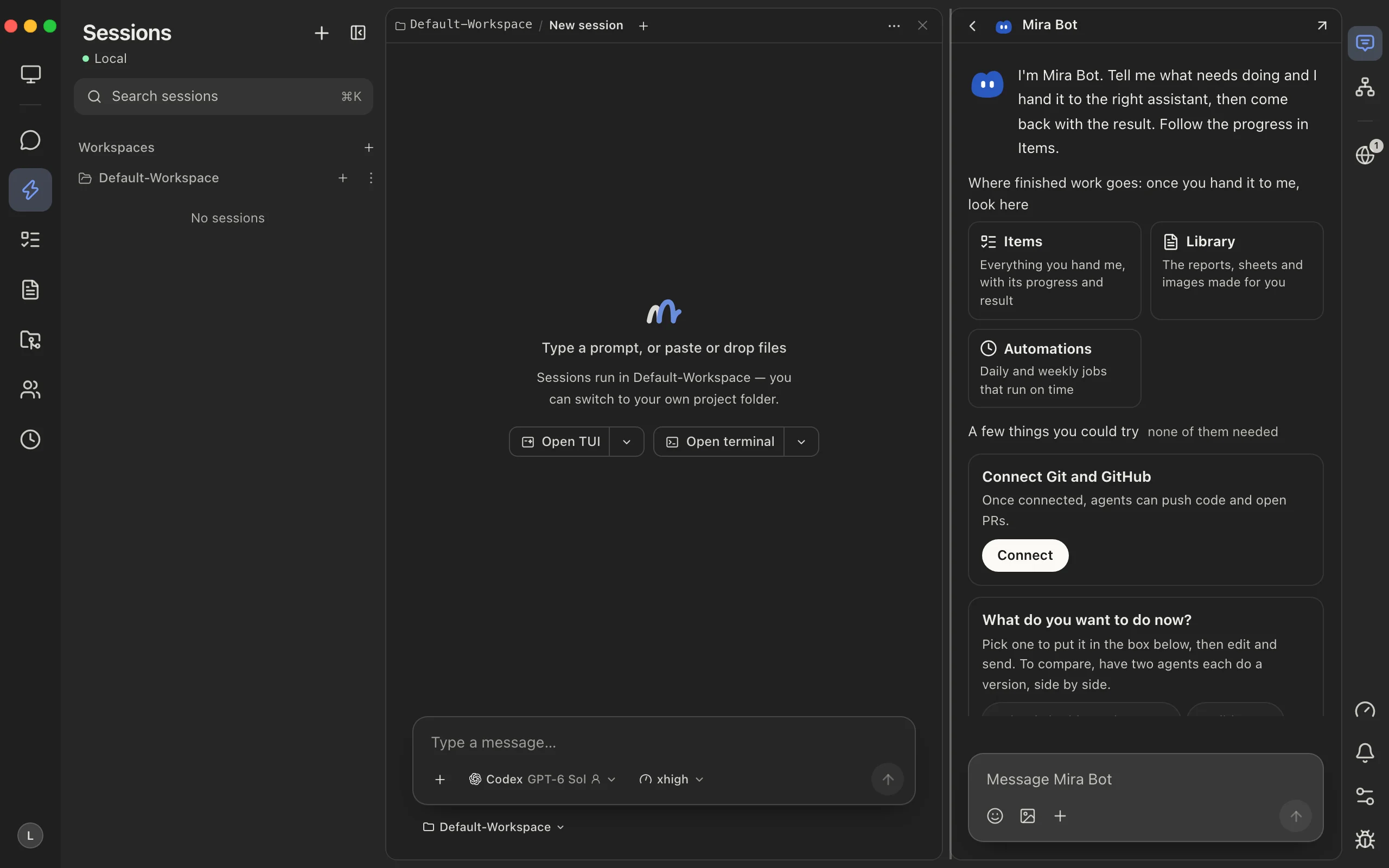
The pages on the left
- Chats
- Direct messages and channels, with people and with assistants (chapter 13).
- Sessions
- Your workspaces and the sessions in them; the session you open fills the middle (chapters 06–10).
- Work items
- What the team is following up on, with goals (chapters 13 and 19).
- Library
- The space's pages, tables and files, including what sessions delivered.
- Workspaces
- Each folder's files and Git: changes, commits, branches (chapter 11).
- Members
- The people and assistants in this space — what they are doing now, Assistant market, New assistant — and requests to join (chapters 03 and 13).
- Automations
- Prompts that run on a schedule (chapter 19).
The space menu and your avatar menu
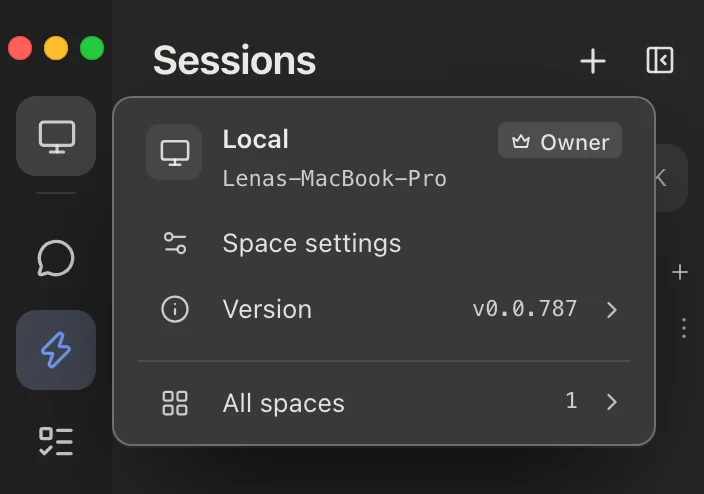
Press the space icon at the top of the left rail for the space menu: the space you are in, Space settings, Version, and All spaces, where you switch to another space or add one. Spaces you used lately are under Recent. On your own computer, Make it a collab space appears here too (chapter 14). Space settings now open in the same window as your own settings, as its Space group.
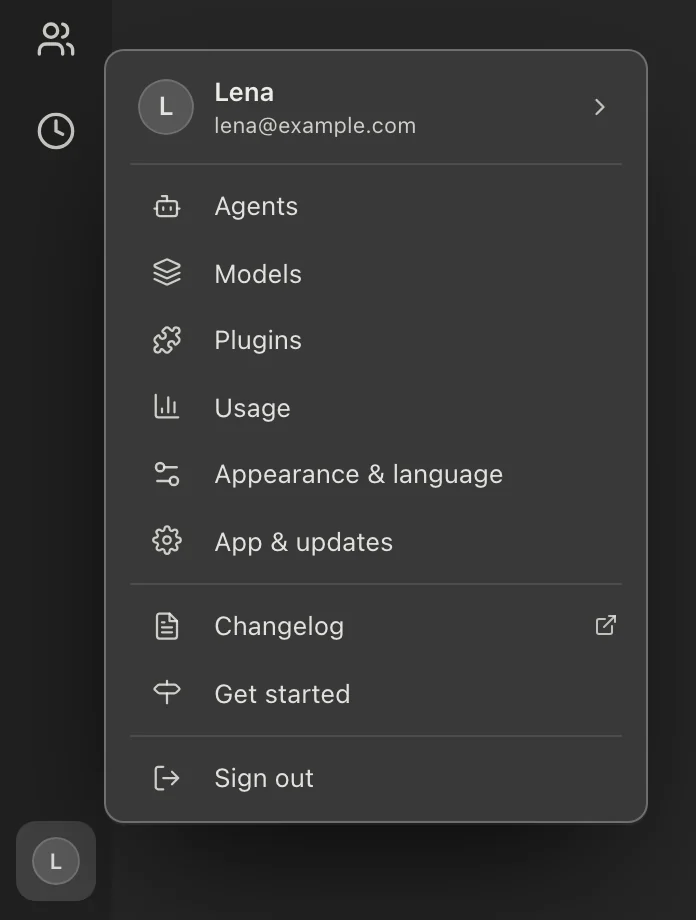
Press your avatar at the bottom for your account page, six settings pages (Agents, Models, Plugins, Usage, Appearance & language, App & updates), the Changelog, Get started — and Set up space if you own the space — and Sign out.
The right bar
- Chats / assistant work items
- On Sessions, it opens Chats in a column beside the session. On other pages it lists the work you handed to assistants (chapter 03).
- Overview
- Every session by who started it, and every assistant by who gave it work.
- Remote desktop · Running pages
- See and operate the space's screen, and preview the web pages it is serving. Shown where the space has them.
- Get started · Set up space
- Shown only while there is something left: how many Get started steps remain on your own computer, or the Set up space list for a space you own. Done or dismissed, the door goes away.
- Credit · Notifications · Appearance · Feedback
- At the bottom right: how much credit is used, what waits on you, theme, language and text size, and a note to the team.
Something wrong or missing on this page? Tell us